

Mathworks
Design and simulation of pick-and-place applications
Autonomous systems are about to revolutionize factories and warehouses. This article shows how Simulink is used to set up a continuous pick-and-place workflow for a mobile manipulator such as the Kinova Gen3 on a mobile Husky robot.

The simulated recycling plant with the mobile manipulator.
© MathworksThis article presents a method for designing and simulating a complete system consisting of two robots using Simulink, Gazebo and the Robot Operating System (ROS). The ROS packages Husky and Kinova are used for low-level motion control and sensing, which allows a seamless transition from simulation to physical hardware, as the ROS commands remain unchanged. The Gazebo world also includes a co-simulation plugin that enables direct communication between the Matlab and Simulink product families and Gazebo, allowing for example to query the Gazebo world or define states of links within the world. In Gazebo, links represent the physical bodies in a simulated environment. The states of a link are its position and orientation as well as linear and angular velocity.
The workflow

In our example, Simulink and Stateflow are used to implement various components of a pick-and-place workflow with a mobile manipulator in a simulated warehouse of a recycling plant. The manipulator picks up recyclable objects from a central conveyor belt and transports them to the respective recycling stations. To examine the pick-and-place components, the Simulink model can be opened via the Matlab command window. The model consists of the following components: Main Task Scheduler, Robot Manipulator, Mobile Robot.
Main Task Scheduler
A stateflow diagram controls the sequence of tasks that the mobile manipulator has to perform in order to execute the pick-and-place task. It activates the tasks for the robot manipulator or the mobile robot depending on the required workflow. The workflow consists of the following steps:
- The mobile manipulator moves to the conveyor belt to pick up an object for recycling.
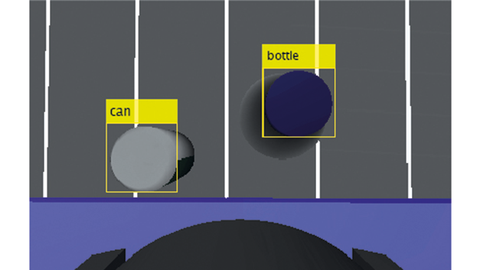
- The RGB-D camera on the robot arm recognizes the orientations and types of objects using deep learning.
- The robot arm picks up the recognized object.
- The mobile manipulator moves to the appropriate recycling container for the recognized object type (bottle or can) and places the object inside.
- The robot returns to the conveyor belt and repeats this process until no more objects are detected.
Robot manipulator

This component implements the tasks that the Main Task Scheduler assigns to the robot manipulator. It includes the robot arm scheduler, the perception subsystem and the motion planning subsystem.
The robot arm scheduler within the robot manipulator component contains five states: Idle, MoveToHome, Detect, PickObject and PlaceObject. Depending on the assignment of a task by the Main Task Scheduler, the robot arm is always in one of these states. To rule out conflicts, whenever either the robot arm or the mobile robot is not in the idle state, the other must be in the idle state.
The perception subsystem is a triggered subsystem that analyzes the simulated image from the camera attached to the end effector using a pre-trained deep learning model to detect recyclable objects. The deep learning model uses the camera image as input and outputs the 2D position of the object in the form of pixel positions and the appropriate recycling bin (blue or green) in which it should be placed. The 2D position in the image is mapped to the robot base as a reference using information about camera properties such as focal length and field of view, depth sensor data and the robot's forward kinematics. The robot manipulator's main task scheduler sends a signal that triggers this subsystem as soon as the robot is supposed to recognize the next object during the pick-and-place workflow.
The motion planning subsystem is an enabled subsystem that receives a signal from the Robot Arm Scheduler to create a trajectory for the robot manipulator to follow. The subsystem sends the Joint Trajectory Controller in ROS the command to follow this trajectory using a ROS/Publish block. The robot arm scheduler activates this subsystem whenever the robot manipulator needs to move during the pick-and-place workflow, and it remains activated until the robot has reached the desired target position.
Mobile robot
The 'Mobile Robot' component implements the tasks that the Main Task Scheduler assigns to the mobile robot. It consists of the Mobile Robot Scheduler, the path planning subsystem and the path tracking subsystem.
Mapping of warehouses

To create a map of the work area, the environment must be scanned using a Lidar sensor mounted on the Husky robot. In this case, the buildmap function was used to create a map with an occupancy grid by navigating the robot through the space. The Mobile Robot Scheduler contains three states: Idle, PlanPath and FollowPath. By default, the mobile robot is in the Idle state, which means that the path planning and tracking systems are inactive. The Mobile Robot Scheduler receives task commands from the Main Task Scheduler. If it receives a Tasks.Robot_Navigate task, it switches from the Idle state to the PlanPath state. The scheduler then runs through the necessary steps with the help of the feedback from the path planning and path tracking subsystems and finally returns to the idle state as soon as the task has been completed. The task is then marked as idle and a signal is sent to the Main Task Scheduler indicating that it can continue with higher level tasks. The process is repeated with each new command by the Main Task Scheduler.
In the PlanPath state, the Mobile Robot scheduler sets taskActive to true, activating the path planning subsystem. The subsystem then returns a series of waypoints and a logical flag (isPath) indicating whether the path search was successful. As soon as the Mobile Robot scheduler receives the value true for isPath, it switches to the FollowPath state.
In the FollowPath state, the Mobile Robot Scheduler sets the requestFollowPath flag to true and thus activates the path tracking subsystem. The path tracking subsystem consists of three main components, which are executed in the following order:
- Control movement with Pure Pursuit: The Pure Pursuit block is the primary motion control. It calculates the speed required for the robot to reach the next waypoint based on the robot's current position and the upcoming waypoint.
- Adapt behavior depending on the distance to the target: The Check Distance to Goal and Zero-Velocity at Goal subsystems ensure that the robot stops as soon as it reaches the goal. The output of the Distance to Goal subsystem is also used by the model to verify that the task has been completed.
- Sending commands to Gazebo via ROS: The Blank Message and Publish blocks send the linear and angular velocity commands sent by the Zero-Velocity at Goal subsystem to the robot's respective velocity controllers in Gazebo. Together, these components guide the robot through the Gazebo world. Once the robot has reached the goal, the subsystem for atGoal returns the value true and signals to the Mobile Robot Scheduler that this step has been completed.
Assignment of variables

To run the Simulink model, some parameters for the robot's initial configurations and target poses must first be set. In this simulation, a Kinova Gen3 manipulator attached to a Husky mobile robot is used. The model of the manipulator, which also includes a gripper, is stored in a MAT file.
Once both the manipulator arm and the mobile robot have been modelled and the initialization variables have been set, the entire system can be simulated. Before the Simulink model is executed, the gazebo simulation, the ROS master and the gazebo interface connections must be started.
Simulation for performance validation

The simulated mobile manipulator consists of a Kinova Gen3 manipulator on a mobile Husky robot.
© MathworksIf the entire system is now simulated in this realistic environment, it can be validated under a wide range of conditions. This includes test scenarios for various recycling plants as well as combinations of different algorithms, sensors and mechanical components. When working on the robot system presented here, for example, initial simulations showed that the perception algorithm originally used for object identification was not accurate enough. As a result, the original neural network was trained with a larger image data set, which was obtained using synthetic augmentation methods, until the desired level of accuracy was achieved. In addition, the simulation was used for what-if studies, where different path planning algorithms were simulated and their results compared in terms of execution time and the ability of each algorithm to compute optimal paths. This approach led to the selection of the RRTStar path planning algorithm, which provided better results than AStar, PRM, Dstar and other algorithms tested. Once the simulation results confirmed that the current version of the robotic system achieved the desired reliability, it was possible to proceed with code generation. This first converted the algorithm into code for execution on prototypes for real-time validation and finally for the final delivered product.
The authors:
Marco Roggero is Senior Application Engineer at Mathworks in Aachen, Germany.
Anastasia Mavrommati is Senior Robotics Research Scientist at Mathworks in Natick, MA, USA.
Roberto Valenti is Senior Robotics Research Scientist at Mathworks in Natick, MA, USA.
Hannes Daepp is Senior Team Lead, Robotics & UAV Applications at Mathworks in Natick, MA, USA.


You might also be interested in
Robotics & Automation - The pacemakers 2023
The robotics market has been experiencing enormous growth for years. The mechanical helpers are used in many sectors - industry, logistics, retail and medical technology. They can be used to increase productivity, efficiency and accuracy in...
 read more...
Beckhoff Automation and Mathworks
How does the intelligence get to the controls?
Although the control software is becoming an increasingly important part of the overall machine, functional tests as part of simulations and virtual commissioning still play a subordinate role in mechanical and plant engineering. This does not have...
read more...Interview with Johanna Pingel, Mathworks
How to use AI correctly
Artificial intelligence promises more efficient processes. But what needs to be considered when working with machine learning & co. Where do I start and, above all, how? Johanna Pingel from Mathworks provides answers.
read more...The top articles in July 2024
Innovative spirit and entrepreneurial thinking characterize the most-read articles from July. Find out more about competitive advantages through AI, click through award-winning developments and read more about model-based design and quantum sensor...
read more...Standard-compliant, agile verification and validation
Model-based design simplifies the development of mechatronic systems by using virtual models from the outset. The second part of the article series highlights methods and functions in the area of software testing - also in relation to the IEC 61508...
read more...Agile development with model-based design
More and more functionalities in production machines are being implemented using software. This makes the development and testing of machines more complex, and conventional methods are reaching their limits. Model-based design enables the agile...
read more...The e-paper of issue 05/2024
Strategies for the future are one of the topics covered in the current issue of Computer&Automation. Read about the reforms that associations are demanding from politicians, the opportunities offered by technologies such as ChatGPT and SPE and...
read more...The top articles in January 2024
The year is off to a fast start for companies and is already bringing with it all kinds of collaborations and changes at this early stage. Developments in the field of robotics and control technology are not standing still either, as our top...
read more...Automation in the high-voltage sector
High-voltage direct current transmission is increasingly being used to transmit large amounts of energy over long distances. An application example from Siemens Energy shows what such a solution has to do with model-based engineering and PC-based...
read more...