

Power BI platform
Visualize data - here's how!
Analyzing and visualizing data is essential for gaining deep insights into manufacturing processes. Microsoft's Power BI platform - which relies on optimal data models - is ideal for this purpose. A helping hand.

The Microsoft Power BI platform has been on the market for two years now and offers cloud and, since the middle of last year, on-premise customers in the enterprise environment the opportunity to present data in an appealing and interactive way, orchestrate it in a data model and then visualize it in dashboards or reports. The origin of the data is not just limited to Microsoft data sources, but extends to many others, such as Oracle, OData, flat files, etc.
As beautiful and simple as the structure of a data model looks in many demonstrations, it is also quickly implemented in practice. However, the complexity of the model increases due to constantly growing requirements and the amount of data - especially in the IoT or machine data environment. In practice, this puts a strain on the data model and its maintainability, especially in the enterprise environment.
Plan data models correctly
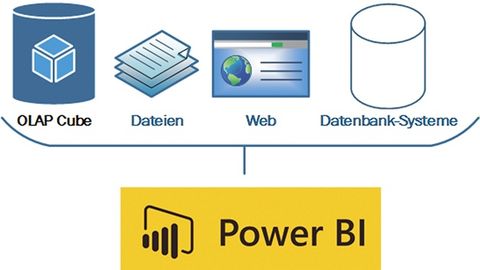
In a Power BI model, a wide variety of data is imported into a data model through the large number of connection managers(see image). These data sources usually have very different update rhythms and granularities. This is one of the challenges for the ETL processes and data import in order to raise the data in the data model to a common technical level. Here, it is advisable to create a 'high-level map' as documentation with the update intervals and, if necessary, only update individual data sources in order to organize the data according to how up-to-date it is. If it is not possible to find a common denominator in the long term (for example, because some data sources are updated more quickly and others more slowly or less reliably), it makes sense to implement an ETL route in a data warehouse and thus provide an analysis layer for evaluations.
Microsoft Power BI online also offers the option of visualizing data that is stored in so-called 'streaming data sets' or data sources that are filled via Microsoft Azure 'Stream Analytics', for example, as live reports. These techniques are particularly useful when evaluating machine data or in the IoT environment, as a large amount of data is delivered at short intervals. This data can be quickly recorded and analyzed. However, it should be a requirement to evaluate the data together with other data from other sources (such as master data). It is therefore advisable to first 'temporarily store' the data in a memory and then create an evaluation on this basis. Microsoft Azure services also offer options for recording and storing large volumes of data that need to be processed at a high frequency.
Implement data imports
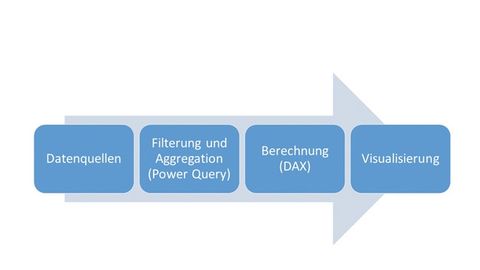
Once the hurdle of data provision has been overcome, you can start importing the data and creating the Microsoft Power BI map. For data provision in Power BI, the data can either be imported directly into the data model or transformed via Power Query or with the programming language 'M' and inserted into the data model by filtering, aggregating or enriching the data with calculations. By filtering the data, you can prioritize data economy and determine in advance which rows and columns are imported. Even if Power BI is characterized by an engine that stores the data in compressed form, among other things, it is advisable not to import all the data in order to achieve optimum performance and clarity in the long term. The big advantage is that updating the data sources is shortened.
It should be noted that this is a column-oriented database engine, which keeps the respective columns in one memory area each. This means less data, smaller memory areas, better indexing and therefore less memory consumption and better performance. Users who use data sources from databases that already allow data to be filtered in the query should preferably use these. For example, both filter types can also be applied directly on the server via the view. Subsequent aggregations of the data can be carried out on the server on the one hand and when connecting other data sources that are not taken from the database on the other - within Power Query.
The modeling
When modeling, it is advisable to use star or snowflake schemas that are modeled dimensionally. This not only enables clear data models, but also the setting of the filter direction, which is particularly relevant for line-based security (role level security).
The filter directions can be used to determine whether all options offered by the dimensions are displayed or only those that are still available in the current filter context. However, if all data is provided in a broad table, such a setting cannot be made. If possible, numerical key attributes should be used, as the data model can process them faster and they enable better compression and indexing.
It is also advisable to use a date dimension table with which, for example, 2-fact tables can be linked and filtered. One example is the CALENDAR() function in DAX, which generates a corresponding table and can be expanded using the Day(), Month() etc. functions.
To make operation easier and to ensure the governance of key figures, all columns that can be used to create key figures should be hidden from the data model. For this purpose, corresponding measures (calculated key figures) should be created in DAX and stored in a separate measure table.
Defined key figures instead of random products
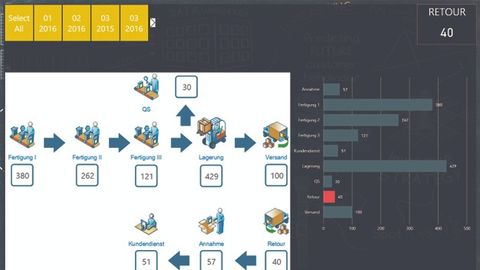
With Custom Visuals, Power BI reports can be expanded alongside the existing visualizations - for example, to display the process steps in a production process.
© AdessoTo do this, an empty table is created via the menu item 'Enter data'. The measures are then created in this table. This procedure allows complex and simple calculations to be placed centrally in the data model. This is done for all meaningful figures contained in the facts in order to retain the 'self-service BI' aspect. Explicit measures enable quick reuse and ensure the correct calculation. To keep everything clear, the data model should be 'fine-tuned' by hiding the technical columns that are necessary for connections between tables. However, appropriate governance is strongly recommended here. Existing data warehouse solutions and their cubes with the existing measures and KPIs can be used.
Custom visuals can be used to expand Power BI reports - in addition to the existing visualizations. They are available in the Microsoft Store. The visualizations are developed using the JavaScript D3 library in combination with CSS.
Present data better
These can be integrated within Power BI with just a few clicks. In addition, individual graphics can be created via the 'Synoptic Designer' website and thus, for example, business processes can be visualized with data.
Microsoft Power BI Online offers several options for distributing dashboards and reports. Reports can be organized in so-called workspaces and shared within existing Office 365 groups from the Azure Active Directory. Dashboards can be shared within and outside the organization. The latter can be set so that data does not fall into the wrong hands. Distributing dashboards to external parties is an interesting option if companies want to integrate service providers or suppliers into their processes and keep them informed of the current status. Another option is to publish reports on the Internet. The report is available as a public link and can be integrated into a website as an IFrame, for example. Power BI also offers interfaces for integrating the reports into websites and apps via a REST interface.
Microsoft SQL Server 2016/2017 has brought a breath of fresh air to the world of reporting services. New features include 'Mobile Reports' and the option to run Power BI in the local infrastructure.
Integration of reporting services
With the classic 'Paginated Reports', the Reporting Services service can now also be connected to a 'Power BI Tenant' via the administration console. From there, users can 'pin' elements from the reports to existing Power BI dashboards. However, this requires that the data sources contain saved login information and that the respective user logs in with their Power BI login information. The user must log in again every 90 days for the update to continue to work. After logging in, the SQL server agent automatically updates the Reporting Services tile of the report. As soon as the user clicks on a Reporting Services tile within a Power BI report, they are navigated to the report server. This requires the user to have a connection to the report server.
In the middle of this year, 'Microsoft Reporting Services' was expanded to include 'Power BI on Premise'. This functionality offers the option of providing Power BI reports within your own organization and distributing them to users via the report server. However, there are certain restrictions here: For example, dashboards cannot be used. Otherwise, this platform offers users the opportunity to find all existing reports that were previously made available via this 'Reporting Services' technology in one place with the Power BI reports.
However, it should be noted that this is only available to Power BI Premium/Enterprise customers with Software Assurance.
Author:
Philipp Lenz is a Senior Consultant for Microsoft Business Intelligence at Adesso.


You might also be interested in
One year of ChatGPT
Almost a year ago, on November 30, 2022, OpenAI presented the chatbot ChatGPT to the public - a sensation for business and society. IT service provider Adesso has investigated how the application has been received in business.
 read more...
Sustainability test bench for software applications
In the ECO:DIGIT project, the German Informatics Society, the Öko-Institut, the Open Source Business Alliance, Adesso and Siemens want to create a platform for evaluating the sustainability of software applications.
read more...The top articles in May 2023
The fact that the fight against climate change is undisputedly the biggest global challenge is also reflected in the most-read articles of May. New applications with the digital twin and trends in AI in dialog continue to top the list.
read more...Intelligent automation - hand in hand with a bot
How far can the automation of processes using software robots go? Software robots now support their human counterparts in many areas of manual processes or repetitive activities.
read more...Room for discussion
In the development of cyber-physical systems, the classic development concept is opposed to the agile concept. This leads to problems between the different disciplines that an 'interaction room' can solve.
read more...Wago takes over 'Zaphire' building management software
The Wago Group is further expanding its building automation business and has acquired the 'Zaphire' building management system (BMS) from the Scandinavian group Granitor.
read more...Platform for AI security in companies
Check Point Software Technologies has introduced 'Check Point AI Defense Plane'. This unified AI security control plane helps organizations manage the networking, deployment and operation of AI across the enterprise.
read more...New EU Toolkit for sustainable Electronic Products
The European research project 'Increace' is setting a milestone for the circular economy: a network of universities, research institutes and industry partners has presented a comprehensive set of basic principles and a new evaluation tool that...
read more...IFS relies on Asset-based Pricing Models
IFS is introducing a new pricing model designed to simplify access to 'Industrial AI'. Instead of paying per user, companies will in future pay per asset operated, enabling company-wide use without cost increases.
read more...